Git Hosting Platform Setup
Description
Source Code Hosting Platforms such as GitLab, GitHub, Bitbucket and Gitea are primarily used for managing and collaborating on software development projects using the Git version control system. Some of these platforms also offer other services such as DevOps pipelines, CI/CD, etc.
Authentication
In order to pull from a private repo, or push changes to a remote, you need to authenticate yourself on the cluster.
Most Git remote cloud services such as GitLab or GitHub removed support for password authentication. Using a SSH public key is now the easiest way to set up authentication.
We will use GitHub as the example but the basic setup should be similar in other git services. For details, here are instructions to SSH public key setup for common Git cloud providers:
-
On the NeSI cluster, run the command
ssh-keygen -t ed25519 -C "your_github_account@example.com" -
When prompted for a file name, press
enter. When prompted for a password, press enter twice more. -
Open up the newly created .pub key with the command
cat ~/.ssh/id_ed25519.pub(or whatever you named the key). It should look something like:
ssh-ed25519 ABCDEFGKSAfjksjafkjsaLJfakjJF your_github_account@example.comCopy the whole key.
-
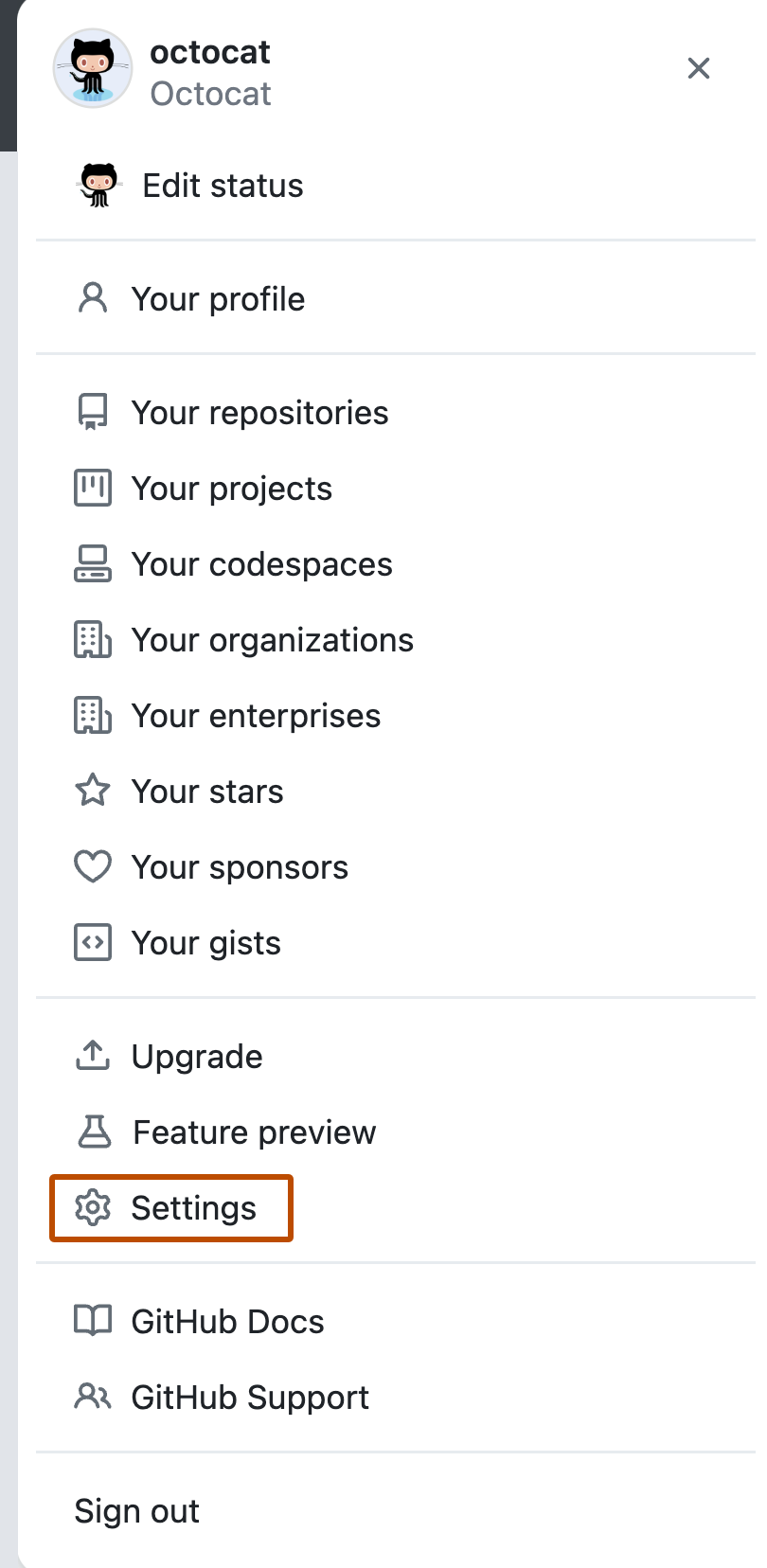
Now log in to your GitHub account. In the upper-right corner of any page, click your profile photo click Settings.
-
In the "Access" section of the sidebar, click SSH and GPG keys.
-
Click New SSH key or Add SSH key.

-
In the "Title" field, put "Mahuika" or "NeSI".
-
Paste your key into the "Key" field.

-
Click Add SSH key.
-
Switching back to your terminal on the cluster, you can test your connection with the command
ssh -T git@github.comYou may be prompted to authenticate, if so type 'yes'
If everything is working, you should see the messageHi User! You've successfully authenticated, but GitHub does not provide shell access.