Data Transfer Between Two Personal Computers
It is possible to copy files between two computers/servers (two endpoints) using Globus. This excludes copying any data to/from Mahuika.
Signing into your Free Globus Subscription
First you need to sign up with a Globus Subscription. This is free for Mahuika users. Click here to learn about how to sign up for a free Globus Subscription.
Transferring files between two computers
Once you have been accept to the NeSI Globus Subscription, we will follow a similar guide for transferring data as
given here, where instead of transferring data between your endpoint
and mahuika, you transfer data between your two computers/servers (your two endpoints).
Here is a break down of what you need to do:
-
Go to the File Manager tab of your Globus page. Give yourself two panels by clicking the
Two Panelbutton: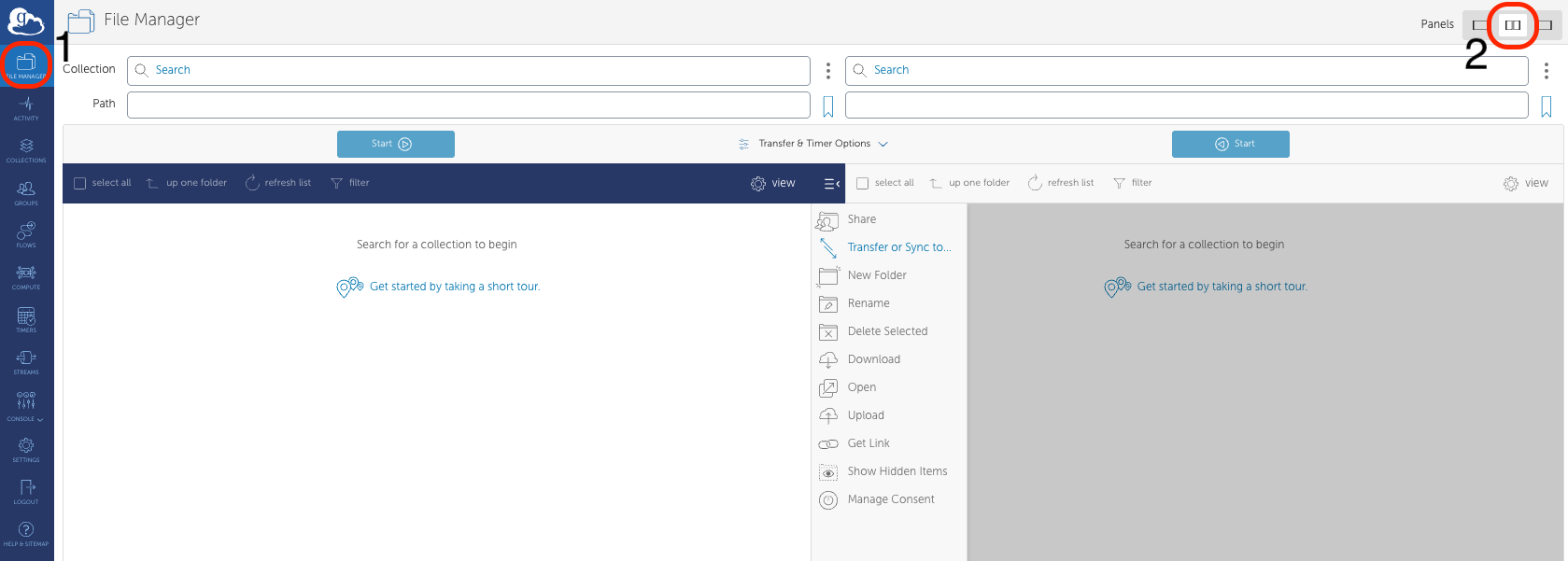
-
Click on the left-hand side
Collectionfield, specifically on the Search icon.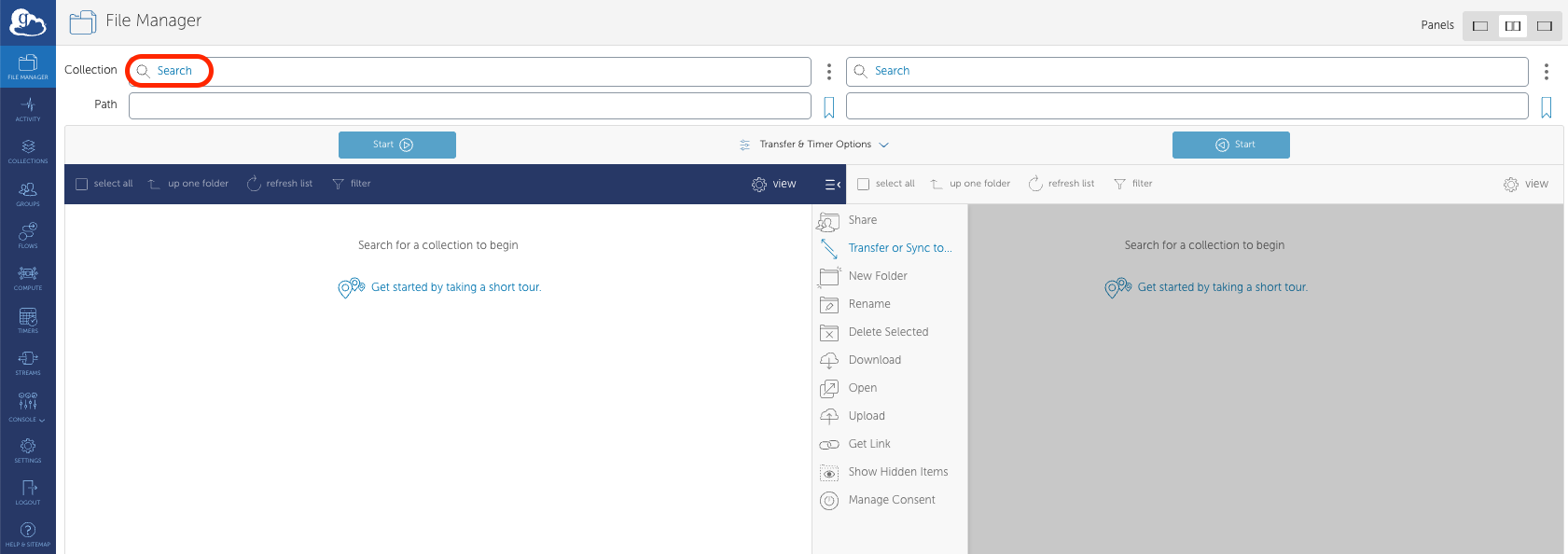
-
Click on the
Your Collectionstab and click on the first computer/endpoint you want to transfer data to/from.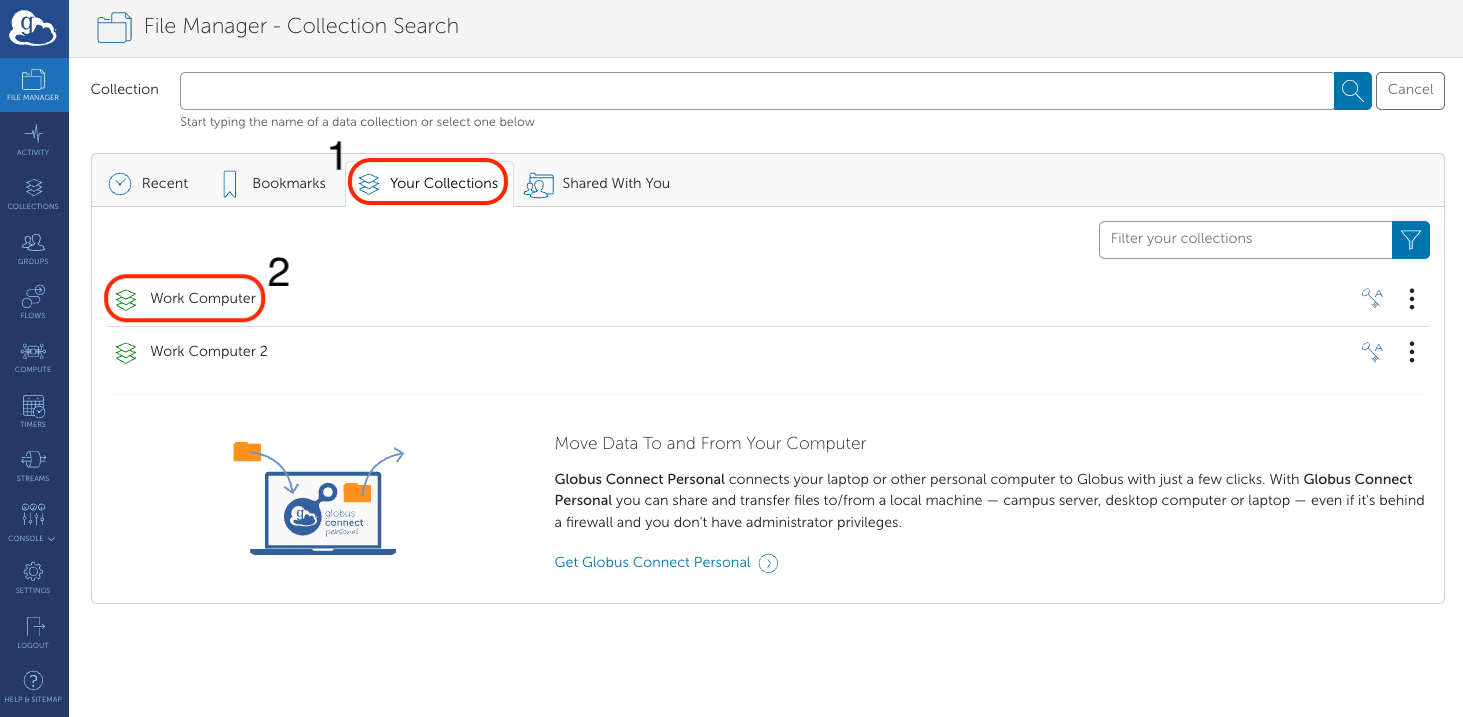
-
This will take you back to the
File Managerwebpage. Repeat steps 2-3 for the right-hand sideCollectionfield, selecting the second computer/endpoint you want to transfer data from/to. -
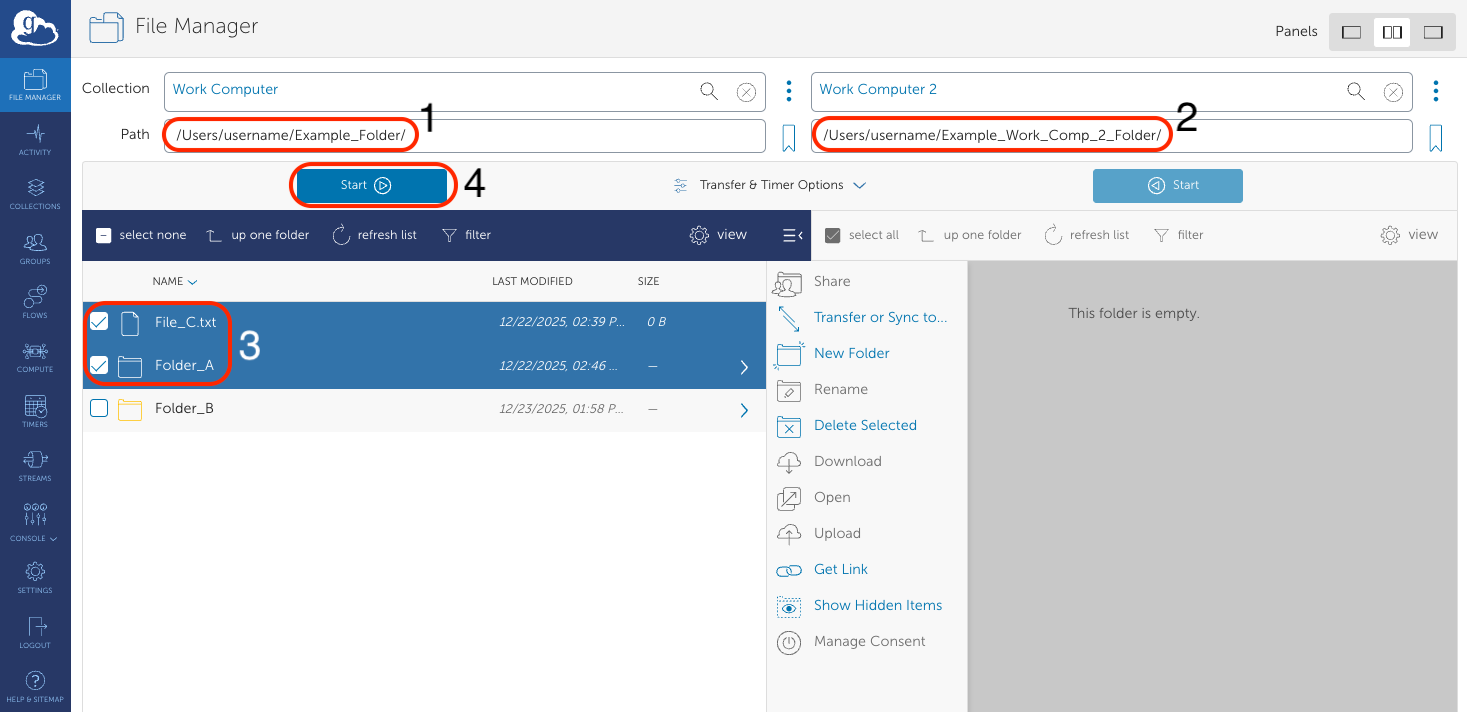
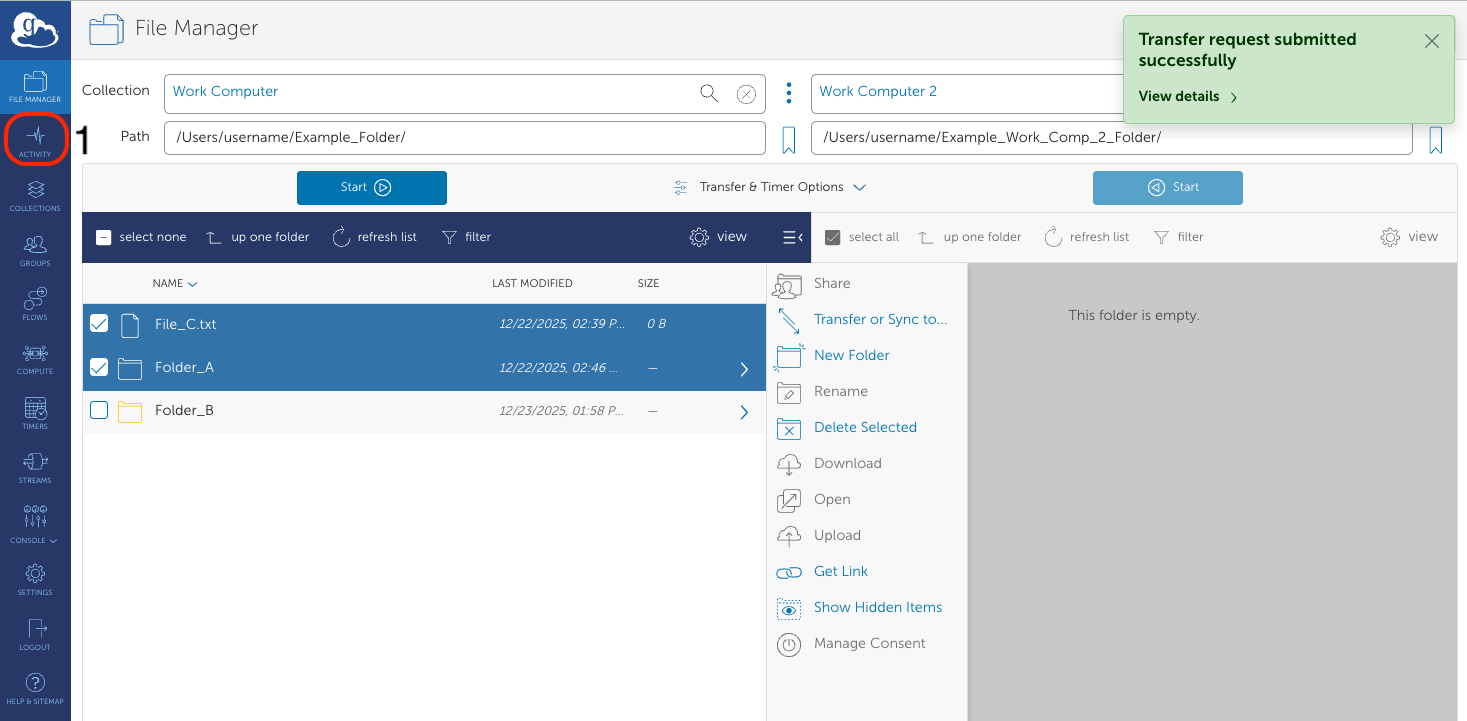
Move the file/folder you want to copy between your two computers/endpoints:
- In one of your panels, go to the path containing the files/folders you want to copy.
- Click on the file/folder you want to copy. This will highlight it.
- If you want to copy multiple files/folders, press
shiftand click on them to highlight them all. - In the other device's panel, enter in the path you want to copy your file to.
- Above the first device's panel, click on the
Startbutton to begin copying your file.
-
You will see a green box at the top right corner of your Globus webpage that says
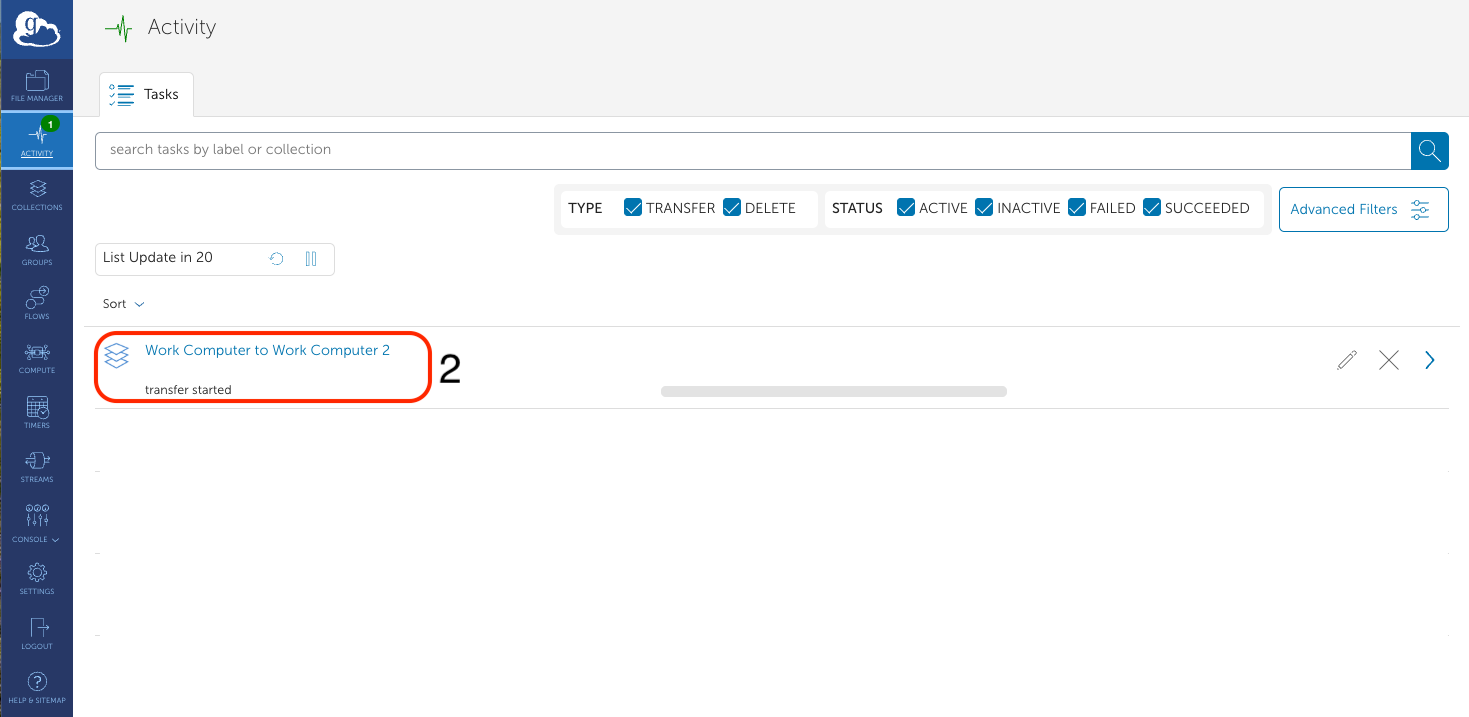
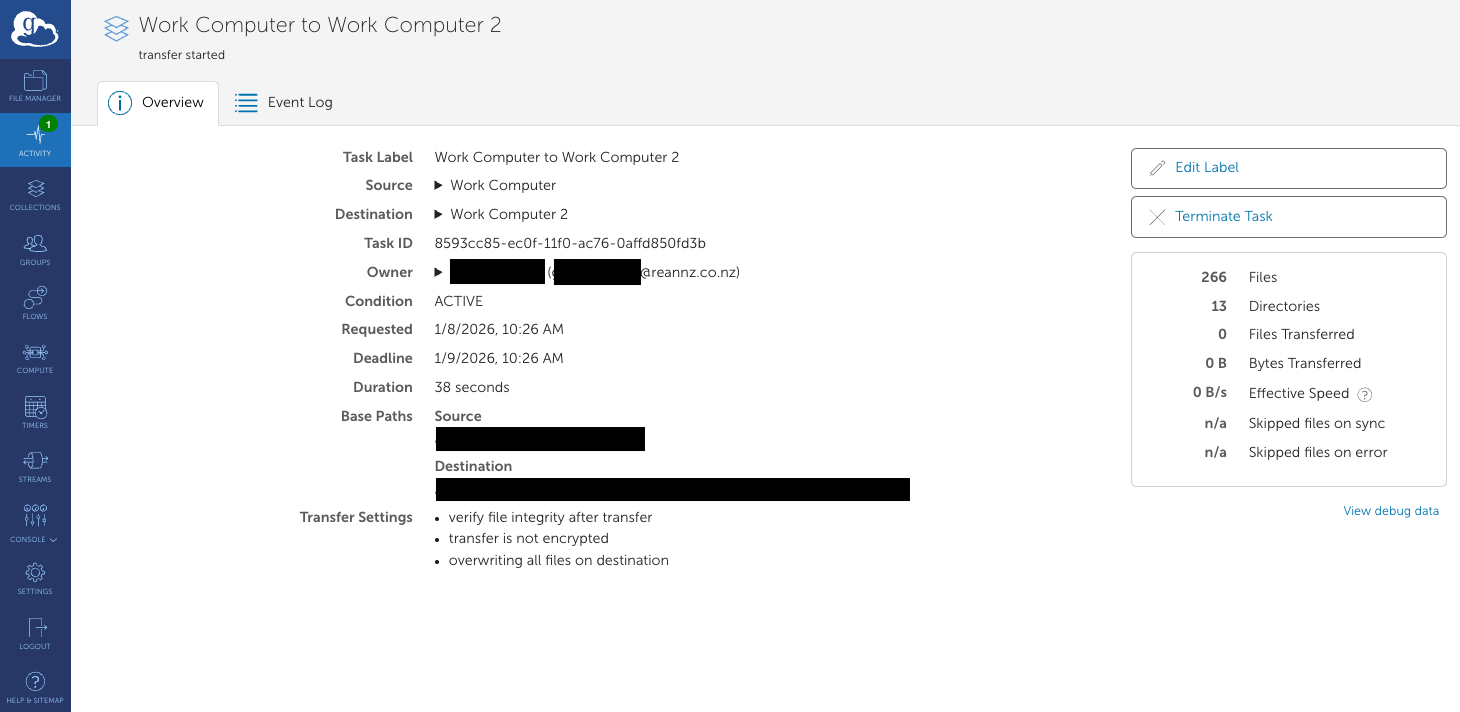
Transfer request submitted sucessfully. This indicates that Globus is in the process of transferring your data between Mahuika and your computer/server.- You can click on the
Transfertab to get more details about how your transfer is doing.
- You can click on the