Bash Shell
50 Minutes
Objectives
- Create, edit, manipulate and remove files from the command line.
- Translate an absolute path into a relative path and vice versa.
- Use options and arguments to change the behaviour of a shell command.
- Demonstrate the use of tab completion and explain its advantages.
- Use wildcards to work with several files at once.
- Check how much storage you are using.
Prerequisite
The Unix Shell
This episode will be a quick introduction to the Unix shell, only the bare minimum required to use the cluster. The Software Carpentry 'Unix Shell' lesson covers the subject in more depth, we recommend you check it out.
The command line
The shell is the program that reads the commands you type and runs them. On Mahuika the shell is called Bash.
When the shell is ready for a command, it shows a prompt, something like this:
[username@login03 ~]$
Type a command after the prompt and press Enter to run it. Many commands print nothing when they work, so no output usually means success. If something goes wrong, the command prints an error message instead.
Getting unstuck
If a command seems stuck, or the prompt has changed to >, press Ctrl+C.
This cancels the command and gives you your prompt back.
Current working directory
The part of the operating system responsible for managing files and directories is called the filesystem. It organises our data into files, which hold information, and directories (also called 'folders'), which hold files or other directories.
Understanding how to navigate the filesystem using command line is essential for using an HPC.
The Mahuika filesystem looks something like this:
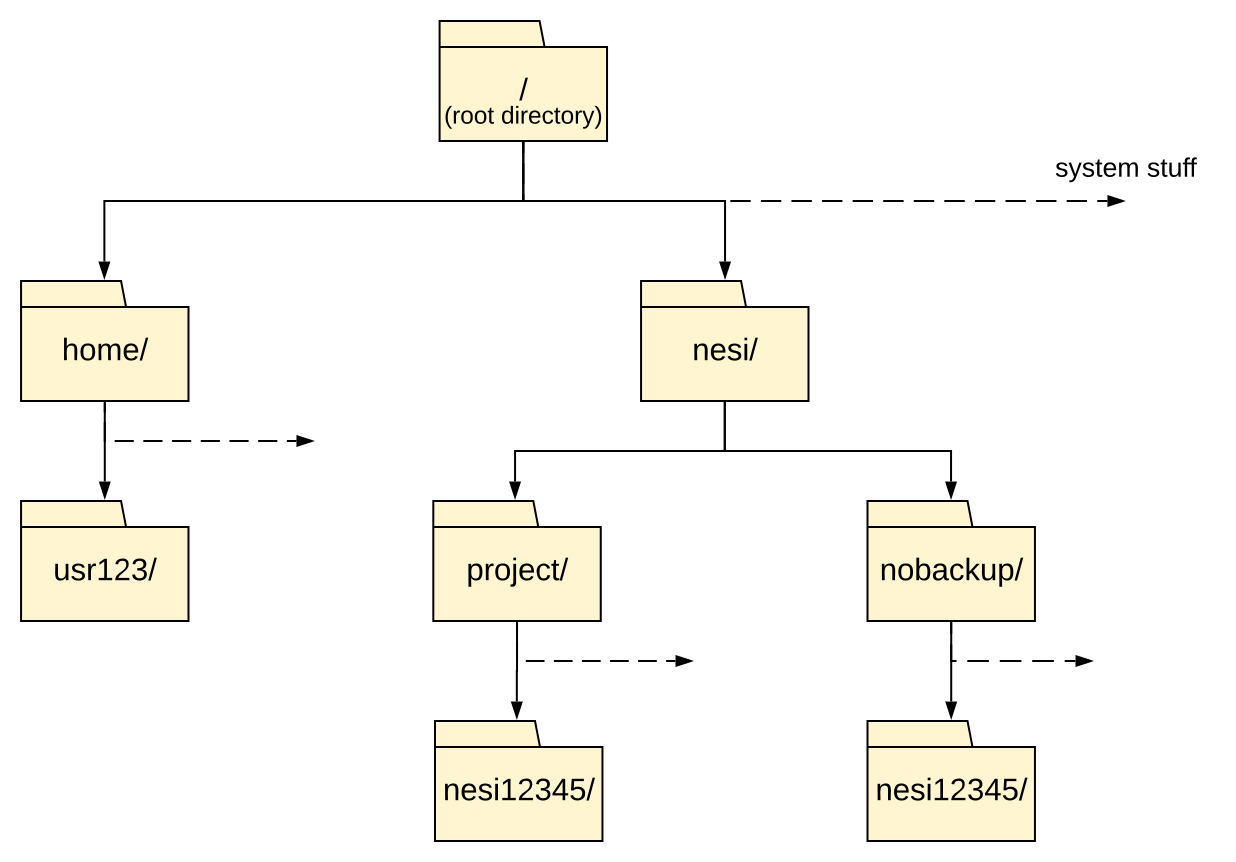
Directories are like places - at any time while we are using the shell, we are in exactly one place called our current working directory. Commands mostly read and write files in the current working directory, i.e. 'here', so knowing where you are before running a command is important.
First, let's find out where we are by running the command pwd, short for 'print working directory'.
pwd
/home/username
The output we see is what is known as a 'path'. The path can be thought of as a series of directions given to navigate the filesystem.
At the top is the root directory that holds all the files in a filesystem.
We refer to it using a slash character, /, on its own.
This is what the leading slash in /home/username is referring to, it is telling us our path starts at the root directory.
Next is home, which is inside the root directory.
We know home is a directory because the path continues after it.
Finally, inside home is the directory with your username: your home directory.
Slashes
Notice that there are two meanings for the / character.
When it appears at the front of a file or directory name,
it refers to the root directory. When it appears inside a path,
it's just a separator.
As you may now see, using a bash shell is strongly dependent on the idea that your files are organised in a hierarchical filesystem. Organising things hierarchically in this way helps us keep track of our work: it's possible to put hundreds of files in our home directory, just as it's possible to pile hundreds of printed papers on our desk, but it's a self-defeating strategy.
Listing directories
To list the contents of a directory, we use the command ls (short for 'list') followed by the path to the directory whose contents we want listed.
Solo learners
This tutorial series was originally written for a live workshop, where every attendee
was added to a shared training project (nesi99991) with a working directory already
created for them, already containing the files used in later exercises.
If you're working through this on your own, you won't have access to nesi99991, so use one of your own projects instead.
Everywhere these lessons use nesi99991, in paths such as /nesi/nobackup/nesi99991/introhpc2610
and in the --account line of the Slurm scripts, use your project code instead.
For the next exercise you will need to run:
mkdir -p /nesi/nobackup/nesi99991/introhpc2610
Replace nesi99991 with your project code.
When you have to download the additional files, they will be called out in blocks like this.
Your working directory
We will now list the contents of the directory we will be working from. We can use the following command to do this:
ls /nesi/nobackup/nesi99991
introhpc2610
You should see a directory called introhpc2610, and possibly several other directories.
For the purposes of this tutorial you will be working within /nesi/nobackup/nesi99991/introhpc2610.
Command History
You can cycle through your previous commands with the ↑ and ↓ keys.
A convenient way to repeat your last command is to type ↑ then enter.
Path Resolution
Given the file tree below.
---
config:
  flowchart:
    curve: stepAfter
---
flowchart TD
    root@{ shape: folder, label: "/" }
    home@{ shape: folder, label: "home" }
    username@{ shape: folder, label: "username" }
    nesi@{ shape: folder, label: "nesi" }
    project@{ shape: folder, label: "project" }
    nobackup@{ shape: folder, label: "nobackup" }
    project_code@{ shape: folder, label: "nesi99991" }
    nobackup_code@{ shape: folder, label: "nesi99991" }
    project_results@{ shape: folder, label: "results" }
    nobackup_results@{ shape: folder, label: "results" }
    plot@{ shape: doc, label: "final_plot.png" }
    run1@{ shape: doc, label: "run1.out" }
    run2@{ shape: doc, label: "run2.out" }
    run3@{ shape: doc, label: "run3.out" }

    root --- home
    root --- nesi
    home --- username
    nesi --- project
    nesi --- nobackup
    project --- project_code
    nobackup --- nobackup_code
    project_code --- project_results
    nobackup_code --- nobackup_results
    project_results --- plot
    nobackup_results --- run1
    nobackup_results --- run2
    nobackup_results --- run3
What command would you type to get the following output?
run1.out run2.out run3.out
Moving about
Currently we are still in our home directory. We want to move into the introhpc2610 directory we just listed.
The command to change directory is cd followed by the path to the directory we want to move to.
The cd command is akin to double clicking a folder in a graphical interface.
We will use the following command:
cd /nesi/nobackup/nesi99991/introhpc2610
You will notice that cd doesn't print anything.
As mentioned earlier, that means it worked.
We can check we are in the right place by running pwd.
pwd
/nesi/nobackup/nesi99991/introhpc2610
Creating directories
As previously mentioned, it is generally useful to organise your work in a hierarchical file structure to make managing and finding files easier.
It is especially important when working within a shared directory with colleagues, such as a project, to minimise the chance of accidentally affecting your colleagues' work.
So for this tutorial you will each make a directory using the mkdir command within your project's nobackup directory for you to personally work from.
mkdir $USER
$USER is a variable that holds your username, so this makes a directory named after you.
Variables are explained in Environment & Modules.
You should then be able to see your new directory is there using ls.
ls /nesi/nobackup/nesi99991/introhpc2610
birds sum_matrix.r username usr123
Your Mileage May Vary
There may already be files and subdirectories in your project's nobackup directory if it isn't a brand new project.
Naming files and directories
Names are case sensitive: Birds and birds are different directories.
Avoid spaces in names. The shell uses spaces to separate arguments,
so mkdir my data makes two directories, my and data.
Use - or _ instead, as in my_data.
Command syntax
We are now going to use ls again but with a twist, this time we will also use what are known as options, flags or switches.
These options modify the way that the command works, for this example we will add the flag -l for "long listing format".
ls -l /nesi/nobackup/nesi99991/introhpc2610
drwxr-s---+ 1 usr9999  nesi99991    0 Jul  2 09:44 birds
-rwxr-x---+ 1 usr9999  nesi99991 1755 Jul  2 09:44 sum_matrix.r
drwxrws---+ 1 username nesi99991    0 Jul  3 12:00 username
drwxrws---+ 1 usr123   nesi99991    0 Jul  3 11:50 usr123
We can see that the -l option has modified the command and now our output has listed all the files with details, which can make finding a specific file easier.
It also includes information about the file size, time of its last modification, and permission and ownership information.
The first character of each line shows what kind of entry it is: d for a directory, and - for a file.
Most Unix commands follow this basic structure.
![A diagram showing the structure of a Unix command. The first section is the prompt and in the example reads [yourUsername@mahuika] ~. The second section is the command and the example reads ls. The third section is the option which is -l in the example. The last section is the argument which is /nesi/project/project_nesi99991 in the example.](../../../assets/images/Unix_Command_Struc.svg)
The prompt tells us that the terminal is accepting inputs, prompts can be customised to show all sorts of info.
The command, what are we trying to do.
Options will modify the behaviour of the command, multiple options can be specified.
Options will either start with a single dash (-) or two dashes (--).
Often options will have a short and long format e.g. -a and --all.
Arguments tell the command what to operate on (usually files and directories).
Each part is separated by spaces: if you omit the space
between ls and -l the shell will look for a command called ls-l, which
doesn't exist. Also, capitalisation can be important.
For example, ls -s will display the size of files and directories alongside the names,
while ls -S will sort the files and directories by size.
Hidden files
Another useful option for ls is the -a option, let's try using this option together with the -l option:
ls -la
drwxrws---+ 1 usr9999  nesi99991    0 Jul  3 11:20 .
drwxrws---+ 1 root     nesi99991    0 Sep 17 10:07 ..
drwxr-s---+ 1 usr9999  nesi99991    0 Jul  2 09:44 birds
-rwxr-x---+ 1 usr9999  nesi99991 1755 Jul  2 09:44 sum_matrix.r
drwxrws---+ 1 username nesi99991    0 Jul  3 12:00 username
drwxrws---+ 1 usr123   nesi99991    0 Jul  3 11:50 usr123
Single letter options don't usually need to be separate. In this case ls -la is performing the same function as if we had typed ls -l -a.
You might notice that we now have two extra lines for directories . and ... These are hidden directories which the -a option has been used to reveal, you can make any file or directory hidden by beginning their filenames with a ..
These two specific hidden directories are special as they will exist hidden inside every directory, with the . hidden directory representing your current directory and the .. hidden directory representing the parent directory above your current directory.
More ls flags
You can also use two options at the same time. What does the command ls do when used
with the -l option? What about if you use both the -l and the -h option (ls -lh)?
Listing in Reverse Chronological Order
By default, ls lists the contents of a directory in alphabetical
order by name. The command ls -t lists items by time of last
change instead of alphabetically. The command ls -r lists the
contents of a directory in reverse order.
Which commands list files in reverse chronological order (oldest first, so the newest file is listed last)?
Hint: You may need to use the -l flag to see the last changed dates.
Getting help
If you try to use an option (flag) that is not supported, ls and other commands
will usually print an error message similar to:
ls -j
ls: invalid option -- 'j'
Try 'ls --help' for more information.
Commands will often have many options. Most commands have a --help flag, as can be seen in the error above. You can also use the manual pages (aka manpages) by using the man command. The manual page provides you with all the available options and their use in more detail.
The manual page fills your terminal until you close it.
To quit the man pages and get your prompt back, press Q.
For example, for the ls command:
man ls
LS(1)                            User Commands                           LS(1)

NAME
       ls - list directory contents

SYNOPSIS
       ls [OPTION]... [FILE]...

DESCRIPTION
       List  information  about  the FILEs (the current directory by default).
       Sort entries alphabetically if none of -cftuvSUX nor --sort  is  speci-
       fied.

       Mandatory  arguments  to  long  options are mandatory for short options
       too.

       -a, --all
              do not ignore entries starting with .

       -A, --almost-all
              do not list implied . and ..

       --author
              with -l, print the author of each file
...
To navigate through the man pages,
you may use ↑ and ↓ to move line-by-line,
or try B and spacebar to skip up and down by a full page.
To search for a character or word in the man pages,
use / followed by the character or word you are searching for.
Sometimes a search will result in multiple hits. If so, you can move between hits using N (for moving forward) and Shift+N (for moving backward).
Manual pages on the web
Of course, there is a third way to access help for commands:
searching the internet via your web browser.
When using internet search, including the phrase unix man page in your search
query will help to find relevant results.
GNU provides links to its
manuals including the
core GNU utilities,
which covers many commands introduced within this lesson.
Relative paths
You may have noticed that when we ran ls -la, we did not give it a directory path.
Until now, when specifying directory names, or even a directory path (as above),
we have been using what are known as absolute paths, which work no matter where you are currently located on the machine
since it specifies the full path from the top level root directory.
An absolute path always starts at the root directory, which is indicated by a
leading slash. The leading / tells the computer to follow the path from
the root of the filesystem, so it always refers to exactly one directory,
no matter where we are when we run the command.
Any path without a leading / is a relative path.
When you use a relative path with a command
like ls or cd, it tries to find that location starting from where we are,
rather than from the root of the filesystem.
When we ran ls -la without a path, it listed the current directory
(implicitly using the . hidden directory).
We will now navigate to the parent directory, the simplest way to do this is to use the relative path ..
cd ..
We should now be back in /nesi/nobackup/nesi99991.
pwd
/nesi/nobackup/nesi99991
When a path is wrong
The most common error you will see is No such file or directory.
Let's make one on purpose, by getting the capitalisation of the next directory wrong:
cd Introhpc2610
-bash: cd: Introhpc2610: No such file or directory
This error means the shell could not find that path, starting from where you are.
When you see it, check the spelling and capitalisation, and run pwd and ls to check where you are and what is there.
Shortcuts
Now let's move into your own directory with a relative path.
From here, it is inside introhpc2610:
cd introhpc2610/$USER
pwd
/nesi/nobackup/nesi99991/introhpc2610/username
cd on its own, with no path, takes you to your home directory:
cd
pwd
/home/username
A tilde (~) at the start of a path is shorthand for your home directory, so cd ~ does the same thing,
and ~/data means /home/username/data.
cd - takes you back to the directory you were in before, and prints its path:
cd -
/nesi/nobackup/nesi99991/introhpc2610/username
The difference between cd .. and cd - is that the former brings you up, while the latter brings you back.
Practice with paths
Absolute vs Relative Paths
Starting from /home/amanda/data, which of the following commands could Amanda use to navigate to her home directory (/home/amanda)?
Relative Path Resolution
Using the file tree below, if pwd displays /nesi/project/nesi99991,
what will ls ../../nobackup/nesi99991/results display?
---
config:
  flowchart:
    curve: stepAfter
---
flowchart TD
    root@{ shape: folder, label: "/" }
    home@{ shape: folder, label: "home" }
    username@{ shape: folder, label: "username" }
    nesi@{ shape: folder, label: "nesi" }
    project@{ shape: folder, label: "project" }
    nobackup@{ shape: folder, label: "nobackup" }
    project_code@{ shape: folder, label: "nesi99991" }
    nobackup_code@{ shape: folder, label: "nesi99991" }
    project_results@{ shape: folder, label: "results" }
    nobackup_results@{ shape: folder, label: "results" }
    plot@{ shape: doc, label: "final_plot.png" }
    run1@{ shape: doc, label: "run1.out" }
    run2@{ shape: doc, label: "run2.out" }
    run3@{ shape: doc, label: "run3.out" }

    root --- home
    root --- nesi
    home --- username
    nesi --- project
    nesi --- nobackup
    project --- project_code
    nobackup --- nobackup_code
    project_code --- project_results
    nobackup_code --- nobackup_results
    project_results --- plot
    nobackup_results --- run1
    nobackup_results --- run2
nobackup_results --- run3Tab completion
Sometimes file paths and filenames can be long, making typing out the path tedious. One trick you can use to save yourself time is to use something called tab completion. If you start typing a name and there is only one possible match, pressing Tab (the tab key on your keyboard) completes it for you.
Solo Learners
If the birds directory isn't present in /nesi/nobackup/nesi99991/introhpc2610 (you are not in an organised workshop), fetch your own copy:
ASSETS=https://raw.githubusercontent.com/nesi/support-docs/main/docs/assets
wget -P /nesi/nobackup/nesi99991/introhpc2610/birds \
    ${ASSETS}/workshops/introhpc/birds/{kaka,kea}.txt \
    ${ASSETS}/workshops/introhpc/birds/{kakapo,kiwi,pukeko}.jpeg
Replace nesi99991 with your project code.
Next to your own directory is a directory called birds.
From your own directory, type the following, but don't press Enter yet:
cd ../bi
Now press Tab. Since birds is the only match, the shell completes the name:
cd ../birds/
Press Enter to run the command, and check where you are:
pwd
/nesi/nobackup/nesi99991/introhpc2610/birds
If more than one name matches, pressing Tab once does nothing, and pressing it twice lists the matches. Type the following, and press Tab twice:
ls k
kakapo.jpeg kaka.txt kea.txt kiwi.jpeg
Type more letters until only one name matches (for example ls kakap), then press Tab again to complete it.
Lots of matches
If there are a lot of matches, the shell asks before listing them all.
For example, there are over a thousand projects in /nesi/nobackup,
so pressing Tab twice after cd /nesi/nobackup/ shows:
Display all 1331 possibilities? (y or n)
Press N to skip the list.
Clearing your terminal
If your screen gets too cluttered, you can clear your terminal using the
clear command. You can still access previous commands using ↑
and ↓ to move line-by-line, or by scrolling in your terminal.
Globbing
One of the most powerful features of bash is filename expansion, otherwise known as globbing. This allows you to use patterns to match a filename (or multiple files), which will then be operated on as if you had typed out all of the matches.
* is a wildcard, which matches zero or more characters.
You should still be in the birds directory from the last section.
List its contents:
ls
kakapo.jpeg kaka.txt kea.txt kiwi.jpeg pukeko.jpeg
In this example there aren't many files, but it is easy to imagine a situation where you have hundreds or thousands of files you need to filter through, and globbing is the perfect tool for this. Using the wildcard character the command
ls ka*
Will return:
kakapo.jpeg kaka.txt
Since the pattern ka* will match kakapo.jpeg and kaka.txt as these both start with ka. While the command:
ls *.jpeg
Will return:
kakapo.jpeg kiwi.jpeg pukeko.jpeg
As *.jpeg will match kakapo.jpeg, kiwi.jpeg and pukeko.jpeg as they all end in .jpeg.
You can use multiple wildcards as well with the command:
ls k*a.*
Returning:
kaka.txt kea.txt
As k*a.* will match just kaka.txt and kea.txt.
? is also a wildcard, but it matches exactly one character. So the command:
ls ????.*
Would return:
kaka.txt kiwi.jpeg
As kaka.txt and kiwi.jpeg are the only files which have four characters, followed by a . then any number and combination of characters.
When the shell sees a wildcard, it expands the wildcard to create a
list of matching filenames before running the command that was
asked for. As an exception, if a wildcard expression does not match
any file, Bash will pass the expression as an argument to the command
as it is.
However, generally commands like ls see the lists of
filenames matching these expressions, but not the wildcards
themselves. It is the shell, not the other programs, that deals with
expanding wildcards.
Matching files with a Pattern
Running ls in a directory gives the output cubane.pdb ethane.pdb methane.pdb octane.pdb pentane.pdb propane.pdb
Which ls command(s) will produce this output?
ethane.pdb methane.pdb
Create a text file
Let's move back into the directory you created earlier, using a relative path:
cd ../$USER
pwd
/nesi/nobackup/nesi99991/introhpc2610/username
Now let's create a file. To do this we will use a text editor called Nano. Nano is controlled with the Ctrl key, so first a word on how that is written.
Ways of writing the Control key
The Control key is often labelled Ctrl. There are various ways in which using the Control key may be described. For example, you may see an instruction to press the Control key and, while holding it down, press the X key, described as any of:
Control-XControl+XCtrl-XCtrl+X^XC-x
In nano, along the bottom of the screen you'll see ^G Get Help ^O WriteOut.
This means that you can use Control-G to get help and Control-O to save your
file.
On a Mac, use the Control key, not Command.
Using nano
Open Nano to create a file called draft.txt:
nano draft.txt
Let's type in a few lines of text.
Once we're happy with our text, we can press Ctrl+O
(press the Ctrl or Control key and, while
holding it down, press the O key) to write our data to disk
(we'll be asked what file we want to save this to:
press Return to accept the suggested default of draft.txt).
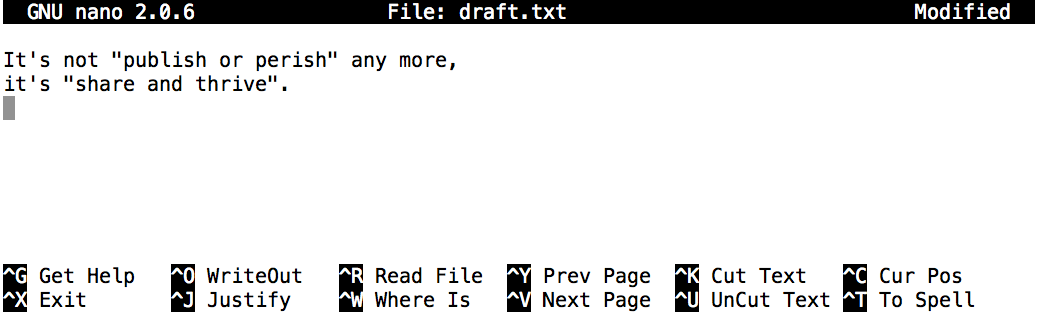
Once our file is saved, we can use Ctrl+X to quit the editor and return to the shell.
If you press Ctrl+X before saving, nano asks whether to save the modified buffer (your changes).
Press Y, then Enter to keep the name draft.txt.
Terminals in a web browser
If you are using a terminal in a web browser, such as in OnDemand, the browser may catch some shortcuts before nano does. For example, Ctrl+W is nano's search, but in most browsers it closes the tab.
nano doesn't leave any output on the screen after it exits,
but ls now shows that we have created a file called draft.txt:
ls
draft.txt
Which Editor?
When we say, 'nano is a text editor' we really do mean 'text': it can
only work with plain character data, not tables, images, or any other
human-friendly media. We use it in examples because it is one of the
least complex text editors. However, because of this trait, it may
not be powerful enough or flexible enough for the work you need to do
after this tutorial. On Unix systems (such as Linux and macOS),
many programmers use Emacs or
Vim (both of which require more time to learn).
No matter what editor you use, you will need to know where it searches for and saves files. If you start it from the shell, it will (probably) use your current working directory as its default location.
Copying files
In a future lesson, we will be running the R script /nesi/nobackup/nesi99991/introhpc2610/sum_matrix.r, but as we can't all work on the same file at once you will need to take your own copy.
This can be done with the copy command cp. It needs at least two arguments: the file (or directory) you want to copy, and the directory (or file) where you want the copy to be created.
We will be copying the file into the directory we made previously. As this should be your current directory, the second argument can be a simple . (the current directory).
Solo Learners
If sum_matrix.r isn't present at that path (you are not in an organised workshop), fetch your own copy directly instead of using cp:
ASSETS=https://raw.githubusercontent.com/nesi/support-docs/main/docs/assets
wget ${ASSETS}/workshops/introhpc/sum_matrix.r
cp /nesi/nobackup/nesi99991/introhpc2610/sum_matrix.r .
We can check that it did the right thing using ls
ls
draft.txt sum_matrix.r
Other file operations
cat prints the contents of a file to the screen.
Its name comes from 'concatenate', as it can also join several files together.
cat draft.txt
It prints the text you typed in nano, for example:
It's not "publish or perish" any more,
it's "share and thrive".
head and tail print the first or last lines of a file.
By default they print 10 lines, but you can set how many with the -n option:
head -n 5 sum_matrix.r
#!/usr/bin/env Rscript

# Function for shared memory execution
doTask <- function(size_x, size_y, seed, print_progress) {
    suppressPackageStartupMessages(library(doParallel))
Copy, move and remove
cp can also copy a file to a new name in the same directory:
cp draft.txt notes.txt
ls
draft.txt notes.txt sum_matrix.r
mv moves a file. It takes source argument(s) and a destination argument, like cp.
mv is also used to rename a file, as far as the computer is concerned moving and renaming a file are the same operation:
mv notes.txt old_notes.txt
ls
draft.txt old_notes.txt sum_matrix.r
rm removes a file, and only needs one argument:
rm old_notes.txt
ls
draft.txt sum_matrix.r
There is no undo
rm deletes files straight away: there is no recycle bin.
cp and mv also replace an existing file with the same name, without asking.
If you delete or overwrite something by mistake, you may be able to recover an older copy from a
snapshot.
Working with directories
In order to cp a directory (and all its contents) the -r for recursive option must be used.
The same is true when deleting directories with rm.
| command | name | usage |
|---|---|---|
cp |
copy | cp file1 file2 |
cp -r directory1/ directory2/ |
||
mv |
move | mv file1 file2 |
mv directory1/ directory2/ |
||
rm |
remove | rm file1 file2 |
rm -r directory1/ directory2/ |
For mv and cp if the destination path (final argument) is an existing directory the file will be placed inside that directory with the same name as the source.
Moving vs Copying
Why must the 'recursive' flag -r be used with the cp or rm commands on a directory, but mv does not require it?
Where to keep your data
You have been working in /nesi/nobackup, one of three places on Mahuika to keep files.
The directories that are relevant to us are:
| Location | Default Storage | Snapshot | |
| Home is for user-specific files such as configuration files, environment setup, source code, etc. | /home/username |
20 GB | Daily |
| Project is for persistent project-related data, project-related software, etc. | /nesi/project/nesi99991 |
100 GB | Daily |
| Nobackup is a 'scratch space', for data you don't need to keep long term. Old data is periodically deleted from nobackup. | /nesi/nobackup/nesi99991 |
10 TB | Weekly |
Snapshots
Mahuika takes snapshots of the /home and /nesi/project (persistent) filesystems once a day,
and of /nesi/nobackup once a week.
So, if you edit or change code or data and then immediately delete it, it likely cannot be recovered.
Protecting critical data from corruption or deletion is primarily your responsibility. Ensure you have a data management plan and stick to the plan to reduce the chance of data loss.
Checking your quotas
Also important is managing your storage quota.
To check your quotas, use the storage_quota command:
storage_quota
Quota_Location                          AvailableGiB           UsedGiB Use%
project_nesi99991                                800               800   100
nobackup_nesi99991                             30720              4608   15
home_username                                     20                13   65
Notice that the project space for this user is full, meaning no more data can be added.
When your space is full you will need to move or remove data.
Also note that most of the nobackup space is unused, so a smart idea would be to move data from project to nobackup with mv.
Note
storage_quota uses cached data, updated about every hour, so it will not immediately show changes to storage use.
For more details on our persistent and nobackup storage systems, including data retention and the nobackup auto-delete schedule, please see our Filesystems and Quotas documentation.
Keypoints
- The shell runs the commands you type at the prompt. No output usually means success, and Ctrl+C cancels a command.
pwdshows where you are,lslists what is there, andcdmoves you somewhere else.- An absolute path starts at the root directory (
/). A relative path starts from where you are. ..is the directory above the current one,.is the current directory, and~is your home directory.- Most commands take options that begin with a
-. Use--helpormanto find them, and press Q to leaveman. - Press Tab to complete names, and use wildcards (
*and?) to match several files at once. cp,mvandrmcopy, move and remove files, and there is no undo.- Keep data you are working on in nobackup, and data you need to keep in project.
What Next