Submitting Your First Job
30 Minutes
Objectives
- Run a simple script through the scheduler
- Use the batch system command line tools to monitor the execution of your job
- Inspect the output and error files of your jobs
Prerequisite
What is a job scheduler?
An HPC system might have thousands of nodes and thousands of users. How do we decide who gets what and when? How do we ensure that a task is run with the resources it needs? This is handled by a special piece of software called the scheduler. On an HPC system, the scheduler manages which jobs run where and when.
The following illustration compares these tasks of a job scheduler to the host in a restaurant. If you can relate to an instance where you had to wait for a while in a queue to get in to a popular restaurant, then you may now understand why sometimes your job does not start instantly, as it would on your laptop.
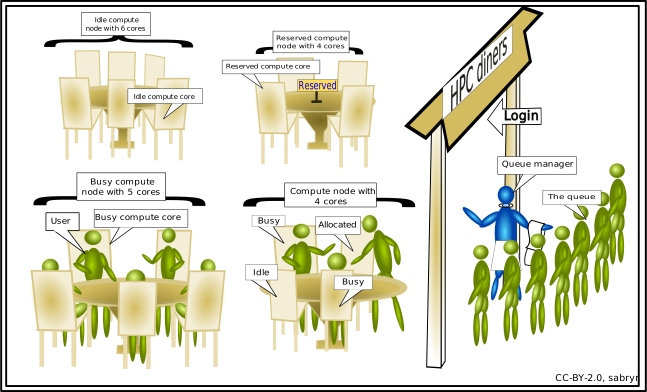
The scheduler used in this lesson is Slurm. Although Slurm is not used everywhere, running jobs is quite similar regardless of what software is being used. The exact syntax might change, but the concepts remain the same.
What is a batch job?
Typically, when we enter a command into our terminal, we receive a response immediately in the same terminal. This is what we call an interactive session.
This is all well for doing small tasks, but what if we want to do several things one after another without waiting in-between? Or what if we want to repeat a series of commands again later?
This is where batch processing becomes useful, this is where instead of entering commands directly to the terminal we write them down in a text file or script. Then, the script can be executed by calling it with bash.
Writing a batch script
Let's try this now. First, move into the directory where you copied sum_matrix.r in Bash Shell:
cd /nesi/nobackup/nesi99991/introhpc2610/$USER
Solo learners
If you are working through this on your own, replace nesi99991 with your project code,
here and in the --account line of the Slurm scripts below.
Then create and open a new file called example_job.sh.
(If you prefer another text editor than nano, feel free to use that)
nano example_job.sh
#!/bin/bash -e

module purge
module load R/4.6.0-foss-2026
Rscript sum_matrix.r
echo "Done!"
shebang
shebang or shabang, also referred to as hashbang is the character sequence consisting of the number sign (aka: hash) and exclamation mark (aka: bang): #! at the beginning of a script.
It is used to describe the interpreter that will be used to run the script.
In this case we will be using the Bash Shell, which can be found at the path /bin/bash.
The job scheduler will give you an error if your script does not start with a shebang.
We recommend using #!/bin/bash -e instead of plain #!/bin/bash, so that the failure of any command within the script will cause your job to stop immediately rather than attempting to continue on with an unexpected environment or erroneous intermediate data.
We can now run this script using
bash example_job.sh
The following modules were not unloaded:
  (Use "module --force purge" to unload all):

  1) NeSI/zen3
Running non-MPI task
Shared Memory Running on 'login01.hpc.nesi.org.nz' with 1 CPU(s)
Summing [ 6.000000e+04 x 4.000000e+04 ] matrix, seed = '0'
 1% done...
 2% done...
...
 98% done...
 99% done...
 100% done...
(Non-MPI) Sums to -29910.135471
Done!
You will get the output printed to your terminal as if you had just run those commands one after another.
Cancelling commands
You can kill a currently running task by pressing Ctrl+C. A task that needs to keep running after you log out belongs in a batch job, which the rest of this lesson covers.
Scheduling your batch job
Up until now the scheduler has not been involved, our scripts were run directly on the login node. The login node is shared by everyone logged in to it, so it is only for light work like this short test (see What is an HPC?). Anything that needs more CPU, memory or time should go through the scheduler.
First let's rename our batch script to clarify that we intend to run it through the scheduler.
mv example_job.sh example_job.sl
File extensions
A file's extension in this case does not in any way affect how a script is read, it is just another part of the name used to remind users what type of file it is. Some common conventions:
.sh: shell script.sl: Slurm script.out: Commonly used to indicate the file contains the standard output (stdout) of some process.err: Same as.outbut for standard error (stderr)
Slurm parameters
In order for the job scheduler to do its job we need to provide a bit more information about our script.
This is done by specifying Slurm parameters in our batch script.
Each of these parameters must be preceded by the special token #SBATCH and placed after the shebang, but before the content of the rest of your script.
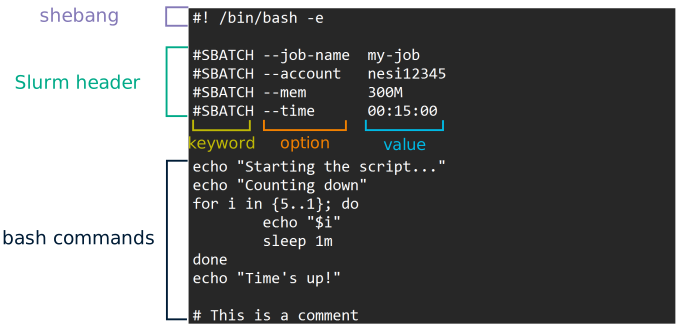
These parameters tell Slurm things about how the script should be run, like memory, cores and time required.
All the parameters available can be found by checking man sbatch or on the online Slurm documentation.
| Parameter | Example | Description |
|---|---|---|
| Job name | #SBATCH --job-name=MyJob |
The name that will appear when using squeue or sacct |
| Account | #SBATCH --account=nesi99991 |
The account your core hours will be 'charged' to |
| Time | #SBATCH --time=DD-HH:MM:SS |
Job max walltime |
| Memory | #SBATCH --mem=1500M |
Memory required per node |
| Output | #SBATCH --output=%j_output.out |
Path and name of the standard output file |
| Number of tasks | #SBATCH --ntasks=2 |
Will start 2 MPI tasks |
| CPUs per task | #SBATCH --cpus-per-task=10 |
Will request 10 CPUs per task |
You can separate an option from its value with =, as in this table, or with spaces, as in the scripts below.
Comments
Comments in UNIX shell scripts (denoted by #) are ignored by the bash interpreter.
Why is it that we start our Slurm parameters with # if it is going to be ignored?
Submitting your batch job
Note that just requesting these resources does not make your job run faster, nor does it necessarily mean that you will consume all of these resources. It only means that these are made available to you. Your job may end up using less memory, or less time, or fewer tasks or nodes, than you have requested, and it will still run.
It’s best if your requests accurately reflect your job’s requirements. We’ll talk more about how to make sure that you’re using resources effectively in a later episode of this lesson.
Let's add some of these parameters to our script. Open it up again:
nano example_job.sl
And add a Slurm header after the shebang, so the whole script looks like this:
#!/bin/bash -e

#SBATCH --job-name      example_job
#SBATCH --account       nesi99991
#SBATCH --time          00:15:00
#SBATCH --mem           300M

module purge
module load R/4.6.0-foss-2026
Rscript sum_matrix.r
echo "Done!"
--time 00:15:00 asks for 15 minutes (HH:MM:SS), and --mem 300M for 300 megabytes of memory.
Solo learners
Replace nesi99991 in the --account line with your project code.
If you submit a job to a project you are not a member of, it fails with
Invalid account or account/partition combination specified.
Now, rather than running our script with bash we submit it to the scheduler using the command sbatch (short for 'Slurm batch').
sbatch example_job.sl
Submitted batch job 231964
And that’s all we need to do to submit a job. Our work is done – now the scheduler takes over and tries to run the job for us.
Checking current jobs
While the job is waiting to run, it goes into a list of jobs called the queue.
To check on our job’s status, we check the queue using the command squeue (short for 'Slurm queue').
We will need to filter to see only our jobs, by including either the flag --user $USER or --me.
squeue --me
JOBID    USER     ACCOUNT   NAME     CPUS MIN_MEM PARTITI START_TIME TIME_LEFT STATE    NODELIST(REASON)
231964   username nesi99991 example_job  1    300M milan,g N/A            15:00 PENDING  (Priority)
We can see many details about our job, most importantly its state (STATE).
The most common states you might see are:
PENDING: The job is waiting in the queue, likely waiting for resources to free up or higher priority jobs to run.RUNNING: The job has been sent to a compute node and it is processing our commands.COMPLETED: Your commands completed successfully as far as Slurm can tell (e.g.exit 0).FAILED: (e.g.exitnot0).CANCELLED: See the next sectionTIMEOUT: Your job ran for longer than its--timeand was killed.OUT_OF_MEMORY: Your job tried to use more memory than it was allocated (--mem) and was killed.
Cancelling jobs
Sometimes we’ll make a mistake and need to cancel a job.
This can be done with the scancel command.
In order to cancel the job, we will first need its job ID, which is in the JOBID column of squeue --me.
scancel 231964
Replace 231964 with your job ID.
A clean return of your command prompt indicates that the request to cancel the job was successful.
Now checking squeue again, the job should be gone.
squeue --me
JOBID USER ACCOUNT NAME CPUS MIN_MEM START_TIME TIME_LEFT STATE NODELIST(REASON)
(If it isn’t wait a few seconds and try again).
Cancelling multiple jobs
We can also cancel several jobs at once. Submit three copies of your job:
sbatch example_job.sl
sbatch example_job.sl
sbatch example_job.sl
Which command cancels all three, without cancelling any of your other jobs?
Checking finished jobs
There is another command sacct (short for 'Slurm account') that includes jobs that have finished.
By default sacct only includes jobs submitted by you since midnight, so no need to include additional options at this point.
sacct
JobID          JobName   Alloc    Elapsed    TotalCPU  ReqMem   MaxRSS State
-------------- --------- ----- ---------- ----------- ------- -------- --------
231964         example_job   2   00:00:21   00:16.892    300M          CANCELLED
231964.batch   batch         2   00:00:22   00:16.892           64352K CANCELLED
231964.extern  extern        2   00:00:23    00:00:00                  COMPLETED
Our job has three lines, because each job step is also shown.
This can be suppressed using the flag -X.
The jobs from the exercise above will also be listed, with one line each if you cancelled them before they started.
A + at the end of a value means it was cut off to fit the column.
For example, CANCELLED+ is CANCELLED by followed by the number of the user who cancelled it.
Where's the output?
On the login node, when we ran the bash script, the output was printed to the terminal.
Slurm batch job output is typically redirected to a file, by default this will be a file named slurm-JOBID.out (for example slurm-231964.out) in the directory where the job was submitted, this can be changed with the Slurm parameter --output.
Error messages go into the same file, unless you set --error.
If your job started before you cancelled it, its output so far is in this file.
More info on Slurm
You can use the manual pages for Slurm utilities to find more about their capabilities.
On the command line, these are accessed through the man utility: run man followed by the program name.
You can find the same information online by searching for 'man' and the program name, for example 'man sbatch'.
man sbatch
There are two additional good sources for quick references on using Slurm:
- our Slurm Reference Sheet
- the official Slurm documentation and cheatsheet
Job environment variables
Job environment variables
When Slurm runs a job, it sets a number of environment variables for the job.
One of these will let us check what directory our job script was submitted from.
The SLURM_SUBMIT_DIR variable is set to the directory from which our job was submitted.
Which line, added to your script, prints the location from which the job was submitted?
Try it:
cp example_job.sl env_test.sl
nano env_test.sl
Add the additional echo lines below, keeping the rest of the script as-is:
#!/bin/bash -e

#SBATCH --job-name      example_job
#SBATCH --account       nesi99991
#SBATCH --time          00:15:00
#SBATCH --mem           300M

echo -n "This script is running on "
hostname
echo "This job was launched in the following directory:"
echo ${SLURM_SUBMIT_DIR}

module purge
module load R/4.6.0-foss-2026
Rscript sum_matrix.r
echo "Done!"
sbatch env_test.sl
Submitted batch job 231968
You don't need to wait for the job to finish. Once it has started, the first lines of its output file show the answer:
head -n 3 slurm-231968.out
This script is running on c006.hpc.nesi.org.nz
This job was launched in the following directory:
/nesi/nobackup/nesi99991/introhpc2610/username
Replace 231968 with your job ID, then cancel the job with scancel.
Keypoints
- The scheduler handles how compute resources are shared between users.
- A job is a shell script, with
#SBATCHlines that tell Slurm what it needs. - Submit a job with
sbatch, check on it withsqueue --me, and cancel it withscancel. sacctshows your jobs that have finished.- A job's output and errors go to
slurm-JOBID.out, in the directory you submitted it from.
What Next