MobaXterm Setup (Windows)
Warning
Logging in via the "sessions" functionality is not compatible with the new HPC's login procedure.
It is recommended to use OnDemand for file browsing, up and downloading and terminal access if you would normally have used MobaXterm.
If you want a terminal on your own machine, Windows Subsystem for Linux (WSL)
or Visual Studio Code are easier to set up and use than MobaXterm.
Prerequisite
Warning
- Use the Portable Edition if you don't have administrator rights on your machine.
- Otherwise, choose freely the Portable or Installer Edition.
What Next?
There are two ways to set up MobaXterm. You only need to follow one of them:
- GUI Setup: save your login details as a session using the MobaXterm menus, then log in from the session list.
- Terminal Setup: save your login details in an SSH config file, then log in by typing
ssh mahuikain the MobaXterm terminal.
GUI Setup
Creating a session
-
Open MobaXterm.
-
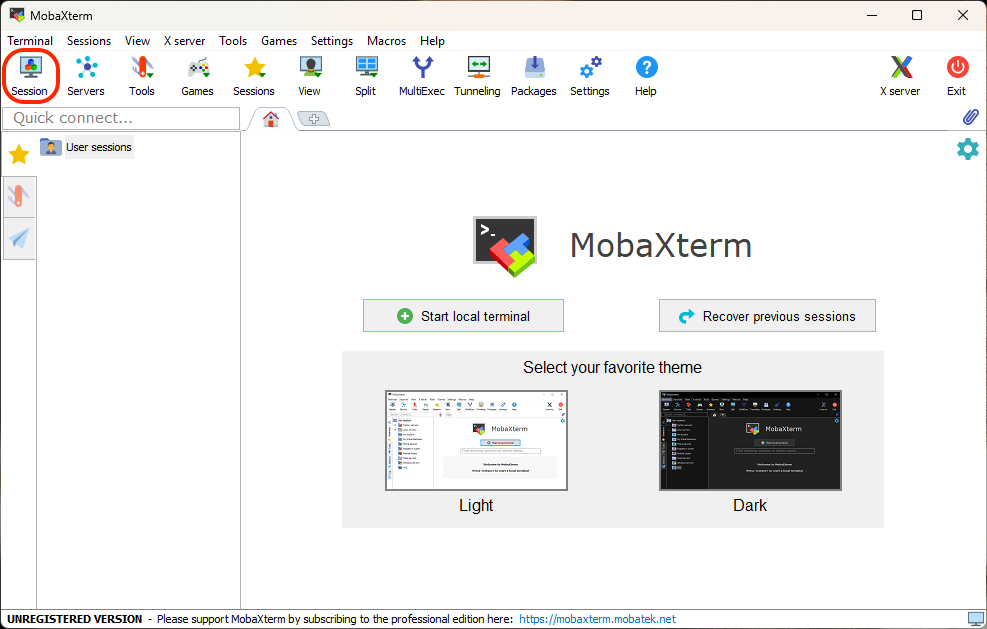
Click Session.
-
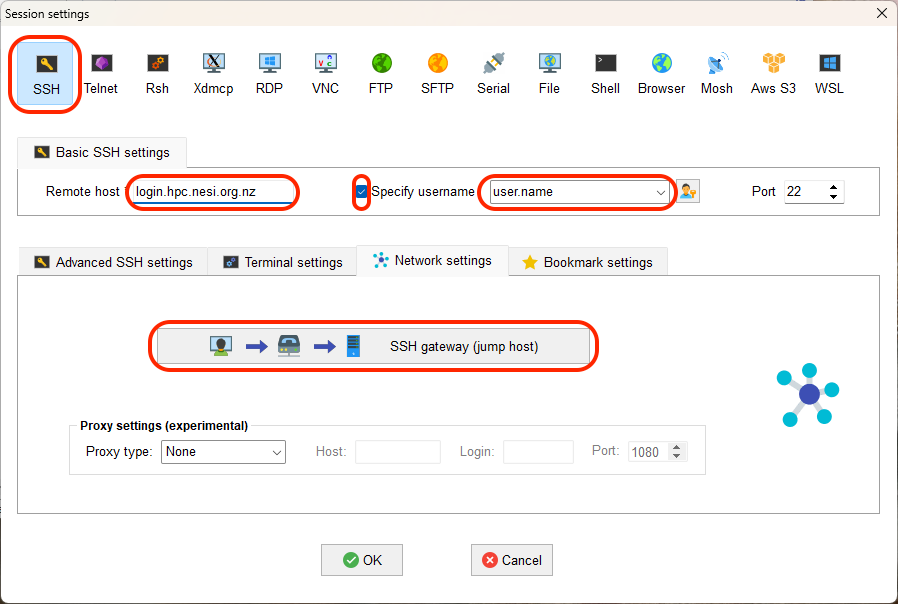
In the Session settings window:
- Click SSH at the top left of the window.
- In the Remote host box, type
login.hpc.nesi.org.nz. - Tick Specify username and type your username.
- On the Network settings tab, click SSH gateway (jump host).
-
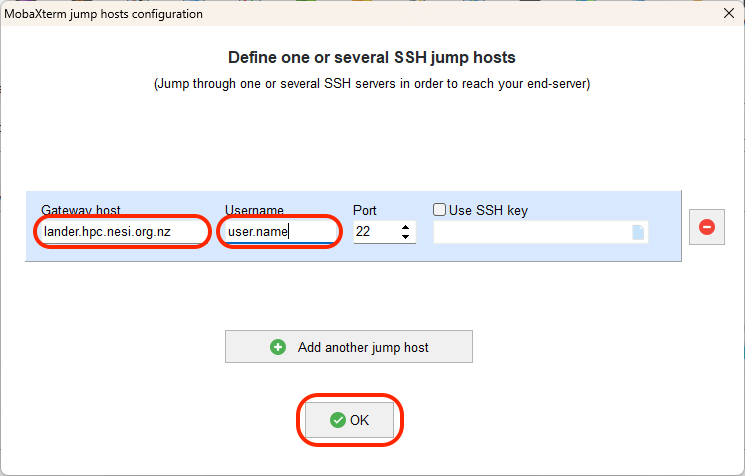
In the MobaXterm jump hosts configuration window:
- In the Gateway host box, type
lander.hpc.nesi.org.nz. - In the Username box, type your username.
- Click OK.
- In the Gateway host box, type
-
In the Session settings window, click OK.
-
Log in by following the steps in Using a saved session.
Using a saved session
-
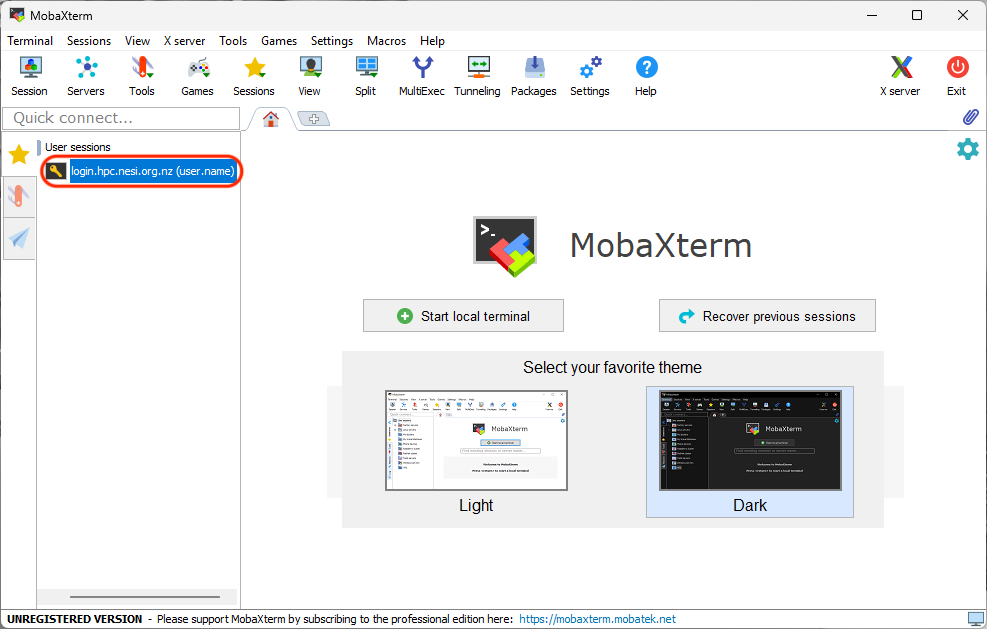
In the left sidebar, click the star icon, then double-click your session under User sessions.
-
A window opens asking you to authenticate. Copy this address into your web browser, replacing
XXXX-XXXXwith the code shown in the window:https://iam.nznesi.io?user_code=XXXX-XXXX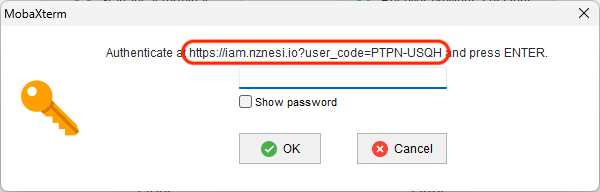
Log in on the website. If you have not logged in before, First Time Login shows what to expect.
-
Once you have logged in on the website, click OK in the MobaXterm window.
-
You may be asked to authenticate one or two more times. Repeat steps 2 and 3 each time.
-
You are now logged in to Mahuika. The terminal opens in the main window, and your files on Mahuika are shown in the left sidebar.
Terminal Setup
First time setup
-
In a new local terminal run;
mkdir -p ~/.ssh/this will ensure you have an.ssh/directory -
Open your ssh config file by typing the following into your MobaXterm terminal:
notepad config.txtNotepad will ask you "Do you want to create a new file?". Click yes
-
Add the following (replacing
usernamewith your username):Host lander User username HostName lander.hpc.nesi.org.nz ForwardX11 yes ForwardX11Trusted yes ServerAliveInterval 300 ServerAliveCountMax 2 Host mahuika User username Hostname login.hpc.nesi.org.nz ProxyCommand ssh -W %h:%p lander ForwardX11 yes ForwardX11Trusted yes ServerAliveInterval 300 ServerAliveCountMax 2 -
Save the file and close Notepad.
-
Run the command
mv config.txt ~/.ssh/config -
Ensure the permissions are correct by running
chmod 600 ~/.ssh/config. -
Run the command.
ssh mahuika -
You will be prompted to approve host authenticity
The authenticity of host 'lander.hpc.nesi.org.nz (163.7.144.68)' can't be established.
ECDSA key fingerprint is SHA256:############################################.
ECDSA key fingerprint is MD5:##:##:##:##:##:##:##:##:##:##:##:##:##:##:##:##.
Are you sure you want to continue connecting (yes/no)?
Type
yesand Enter -
You will be presented with a link.
Authenticate at https://iam.nesi.org.nz/realms/public/device?user_code=XXXX-XXXX and press ENTER.Hold Ctrl and click the link to open it. Do not highlight the link to copy it, as this can send Enter before you have authenticated.
Double Authentication
If you set up your
.ssh/configas recommended you will be prompted to authenticate again.
We are working on fixing this. -
Select your institution, you will be prompted to provide your login details.
-
You are now asked about your current device: do you trust it or not?
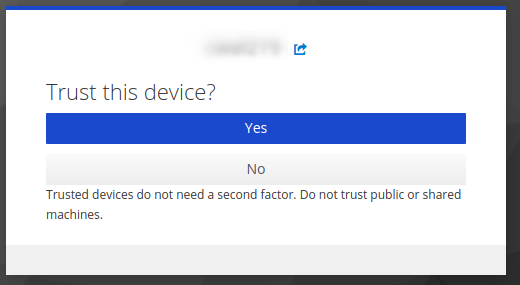
- If this device is a shared computer (e.g. university computer where you have to delete cookies) or if you are using incognito or private windows, please do not trust it: click No. This means that you will need to enter your 6-digit code every time you log in.
- If this device is your own laptop and you are using a secure network, you can trust it: click Yes. This will allow you to log in without additional authentication for 7 days.
If you have trusted your device, you have to enter a name for this device. This name must be unique but can be anything you want.
Note: You cannot trust two devices the same day with the same name.
-
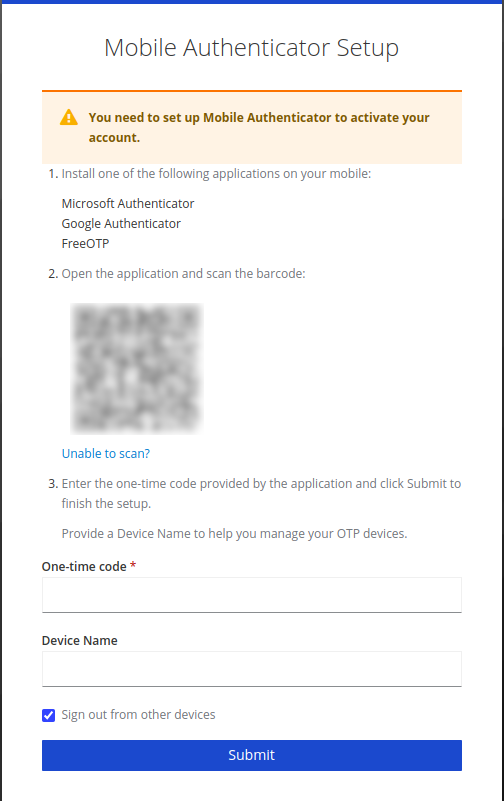
Scan the QR code with your authenticator app. Then enter the 6-digit code provided. You may give your device a name.
-
Return to your terminal, and press enter.
Subsequent log in
ssh mahuika- Follow the link.
- You may be prompted for your 6 digit code.
- Return to your terminal, and press enter.