Evaluating Job Efficiency
30 Minutes
Objectives
- review the resource utilisation of a previous job
- identify areas for improvement in job efficiency
Prerequisite
This tutorial assumes familiarity with Mahuika and the use of HPCs. You should be able to:
- use the terminal to navigate a filesystem
- find and load software
- write a batch script
- submit batch jobs to Slurm
- check on the status of queued and completed Slurm jobs
These tasks are covered in the Introduction to HPC tutorials.
This tutorial aims to give you hands on experience evaluating and improving job efficiency. To do that, we are going to work with an example workflow from genomics, but no genomics knowledge is needed for the tutorial.
The example used here is based on materials from the Data Carpentry Data Wrangling and Processing for Genomics and Genomics Aotearoa Intro to Bash Scripting and HPC Scheduler workshops if you want more information.
Setup
To begin, we will be working with some example scripts that can be found in /opt/nesi/examples/tutorials/job_scripting.
You will want to have these files in your nobackup directory.
Let's make a directory to work from and copy the files in.
cd /nesi/nobackup/nesi99991/hpc102
mkdir $USER
cd $USER
cp -r /opt/nesi/examples/tutorials/job_scripting .
Solo learners
This tutorial series was originally written for a live workshop, where every attendee
was added to a shared training project (nesi99991) with an hpc102 directory already created.
If you're working through this on your own, you won't have access to nesi99991, so use one of your own projects instead.
Everywhere these lessons use nesi99991, in paths and in the --account line of the batch scripts, use your project code instead.
Before the commands above, create the hpc102 directory:
mkdir -p /nesi/nobackup/nesi99991/hpc102
Replace nesi99991 with your project code.
There are 3 broad steps in this workflow:
- Indexing the reference genome
- Quality control
- Alignment and variant calling
pipeline.sl runs them one after another in a single job, with every sample going through each step before the next step starts:
flowchart TD
    subgraph job["pipeline.sl"]
        index("Index reference genome") --> qc("Quality control")
        qc --> align("Alignment and variant calling")
    end
Looking at a previous job and its efficiency
sacct
pipeline.sl
#!/bin/bash -e

#SBATCH --job-name      pipeline
#SBATCH --account       nesi99991
#SBATCH --time          04:00:00
#SBATCH --mem           5G
#SBATCH --cpus-per-task 4
#SBATCH --profile       task

module purge
module load FastQC/0.12.1
module load Trimmomatic/0.39-Java-1.8.0_144
module load bwa-mem2/2.3-GCC-12.3.0
module load SAMtools/1.22-GCC-12.3.0
module load BCFtools/1.22-GCC-12.3.0

# Limit Java's memory, or Trimmomatic sizes it from the whole node.
export JAVA_TOOL_OPTIONS="-Xmx1g"

# Reference genome indexing
gunzip -kf ref_genome/ecoli_rel606.fasta.gz
bwa-mem2 index ref_genome/ecoli_rel606.fasta

# Quality control
cd untrimmed_fastq
fastqc *.fastq*

mkdir -p ../trimmed
cd ../trimmed
for infile in ../untrimmed_fastq/*_1.fastq.gz
do
    base=$(basename ${infile} _1.fastq.gz)
    trimmomatic PE ${infile} ../untrimmed_fastq/${base}_2.fastq.gz \
        ${base}_1.trim.fastq.gz ${base}_1un.trim.fastq.gz \
        ${base}_2.trim.fastq.gz ${base}_2un.trim.fastq.gz \
        SLIDINGWINDOW:4:20 MINLEN:25 \
        ILLUMINACLIP:${EBROOTTRIMMOMATIC}/adapters/NexteraPE-PE.fa:2:40:15
done

cd ..
mkdir -p results/sam results/bam results/bcf results/vcf
gunzip trimmed/*.fastq.gz

# Alignment and variant calling
for infile in trimmed/*_1.trim.fastq
do
    base=$(basename ${infile} _1.trim.fastq)
    bwa-mem2 mem -t 4 ref_genome/ecoli_rel606.fasta \
        ${infile} trimmed/${base}_2.trim.fastq > results/sam/${base}.aligned.sam
    samtools view -S -b results/sam/${base}.aligned.sam \
        > results/bam/${base}.aligned.bam
    samtools sort results/bam/${base}.aligned.bam \
        -o results/bam/${base}.aligned.sorted.bam
    bcftools mpileup -O b -o results/bcf/${base}.bcf \
        -f ref_genome/ecoli_rel606.fasta results/bam/${base}.aligned.sorted.bam
    bcftools call --ploidy 1 -m -v \
        -o results/vcf/${base}.vcf results/bcf/${base}.bcf
    vcfutils.pl varFilter results/vcf/${base}.vcf > results/vcf/${base}.var.vcf
done
The example script pipeline.sl has already been run as a batch job and has the job ID 9296168.
Let's take a look at the status of that job before we even start looking at the script and see what we can learn.
We will use the sacct command which stands for slurm accounting and let's us look at the accounting data that Slurm saves for each job.
By using the -j flag, we can specify a specific job ID, but you can also use sacct to look at your own jobs (by default this only shows jobs from the past day)
sacct -j 9296168
Solo learners
If sacct shows nothing for this job ID, you can follow along with the output shown on this page.
To look at a job of your own instead, submit pipeline.sl with sbatch pipeline.sl,
and use the job ID it prints in place of 9296168 once it has finished.
It takes about 30 minutes.
JobID           JobName    Elapsed     AveCPU     MinCPU   TotalCPU Al NT     MaxRSS      State
------------ ---------- ---------- ---------- ---------- ---------- -- -- ---------- ----------
9296168      intermed-+   00:29:10                        29:56.822  8                COMPLETED
9296168.bat+      batch   00:29:10   00:29:57   00:29:57  29:56.822  8  1   1439444K  COMPLETED
9296168.ext+     extern   00:29:10                         00:00:00  8  1             COMPLETED
Changing what sacct shows you by default
All accounts have the same settings for sacct initially, but you can make changes to what you are seeing.
Here are some sacct options you may find helpful:
| Option | Example | Description |
|---|---|---|
--starttime/-S |
--starttime=today |
Select jobs in any state after the given time. |
--endtime/-E |
--endtime=now-2hours |
Select jobs in any state before the given time. |
--jobs/-j |
--jobs=9296168,9310633 |
Display only the given job(s) or job step(s). |
--long/-l |
--long |
Includes all possible fields for the format |
--name |
--name=pipeline |
Display jobs that have any of these name(s) |
--parsable/-p |
--parsable |
Output will be " |
--parsable2/-P |
--parsable2 |
Output will be ' |
--state/-s |
--state=COMPLETED |
Selects jobs based on their state during the time period given. |
--user/-u |
--user=$USER |
Display jobs for the user(s) specified |
There is an additional flag called --format/-o that lets you change what information is shown about each job.
The default option for this is set via the SACCT_FORMAT environmental variable, but you can override it using the -o option.
Here are some of the fields you can request to see:
| Field | Description |
|---|---|
Account |
Account the job ran under. |
AllocCPUs / NCPUS |
Total number of CPUs allocated to the job. |
AllocNodes |
Number of nodes allocated to the job/step. 0 if the job is pending. |
CPUTime |
Time used (Elapsed time * CPU count) by a job or step in HH:MM:SS format. |
Elapsed |
The job's elapsed time. The format of this field's output is as follows: [DD-[HH:]]MM:SS |
End |
Termination time of the job. |
JobID |
The identification number of the job or job step. |
JobName |
The name of the job or job step. |
NNodes |
Number of nodes in a job or step. |
NodeList |
List of nodes in job/step. |
NTasks |
Total number of tasks in a job or step. |
Partition |
Identifies the partition on which the job ran. |
ReqCPUS |
Number of requested CPUs. |
ReqMem |
Minimum required memory for the job. |
ReqNodes |
Requested minimum Node count for the job/step. |
Restarts |
How many times this job has been requeued/restarted. |
Start |
Initiation time of the job. |
State |
Displays the job status, or state. |
Submit |
The time the job was submitted |
Timelimit |
The time limit of the job or job step. |
User |
The username of the user who ran the job. |
WorkDir |
The directory used by the job to execute commands. |
You can find lots more information about how to use sacct in the Slurm documentation.
seff
The basic sacct tells us a little about the job: the runtime, how many CPUs were allocated, the final job state.
But this information doesn't really help us evaluate how well the job ran.
To look at the efficiency of our job, we can use the command seff (short for Slurm efficiency):
seff 9296168
Job ID: 9296168
State: COMPLETED
Cores: 4
Job Wall-time:         12%  00:29:10 of 04:00:00 time limit
Avg CPU Utilisation:   26%  00:29:57 of 01:56:40 core-walltime
Peak Mem Utilisation:  27%  1.37 GB of 5.00 GB
seff gives us a lot of the same information but with a bit more context.
What resources would you request if resubmitting the job based only on this information?
You aren't working with a lot of information yet, but we can take a first stab at how to improve our job efficiency just by adjusting our requested resources.
Solution: resources for next time
We can probably lower the memory and CPUs requested, but if we are doing so, it might be best to leave the job time alone so if the job runs a little slower it doesn't timeout.
Reading seff
seff reports Avg CPU Utilisation: 26% for a job that requested 4 CPUs. What does that mean?
This is a good first step, we noticed that we are requesting more resources than we need and can make some quick adjustments. But this assumes that the resources being used are fairly stable over the script. The CPU utilisation is just an average, so we don't know if there was a portion of the job that did use all the CPUs we allocated to the job.
Job profiling
Slurm has the ability to conduct 'profiling' on jobs being submitted. This stores extra data about the resources the job uses at various times throughout the job and can let you assess your efficiency in more detail. To enable profiling in a batch job, you need to add the following to your Slurm header:
#SBATCH --profile=task
Luckily for us, this was included in our script when it was run previously, so we can access this data about our job.
We can run profile_plot 9296168 to produce an image with plots of the CPU, memory and I/O utilisation over the course of our job.
profile_plot will produce a file named after the job ID, so in this case we will get 9296168.png.
You can open this file in an integrated development environment (IDE) like VS Code or JupyterLab, or try running gm display 9296168.png
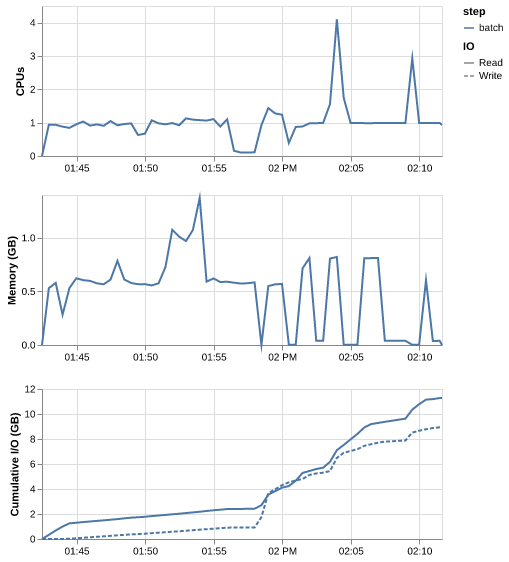
Now we can see things in a bit more detail.
What stands out?
What more can we learn from these plots? Does this change your thoughts on how to adjust the requested resources?
Solution
- The job has distinct phases, which match the three steps in the script.
- For most of the job only about one of the four CPUs is busy. The CPU use only briefly reaches four, during alignment.
- Memory peaks at about 1.4 GB during quality control, and stays well below that for the rest of the job.
- Reading and writing files grows steadily through the alignment step.
So reducing the CPUs for the whole job would slow down the short parts that use them, while keeping four CPUs wastes them for most of the job.
Reviewing our batch script
Now let's actually take a look at what this job was running.
Let's open pipeline.sl and poke around.
As mentioned above, this script is doing 3 major steps which are indicated with comments in the script:
- Indexing the reference genome
- Quality control
- Alignment and variant calling
Looking at the profile plot, we can try to identify the steps of the job.
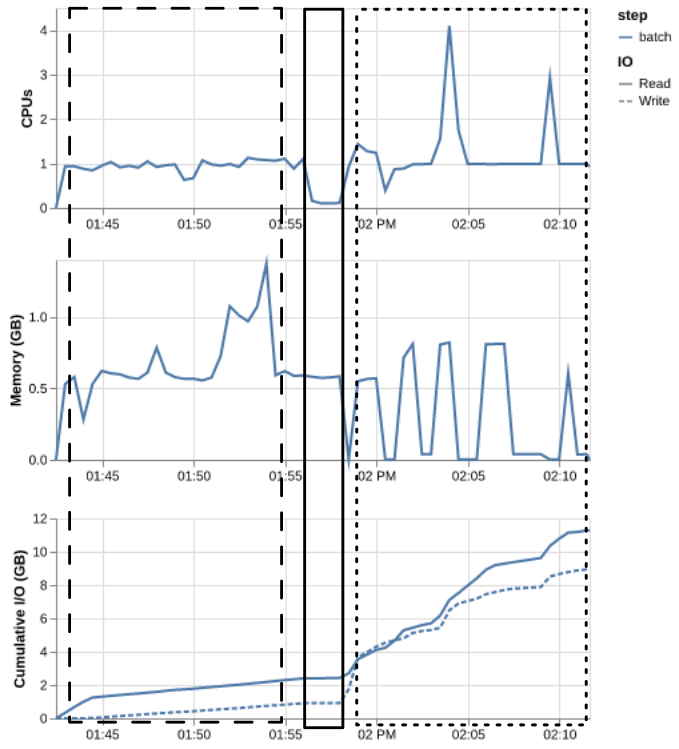
There are two major sections in the profile plot, and one little blip in the middle that we can guess is the reference genome indexing occurring between the quality control and alignment/variant calling steps.
What we have found
Our job requested 4 CPUs and 5 GB of memory for its whole run, but:
- most of the time it used one CPU
- each step needs different resources
- the same steps run one sample after another, in a single long job
Adjusting the resources of the whole job only helps so much.
Keypoints
sacctandseffcompare what a job requested with what it used, but only as totals and averages.- Profiling shows how a job's use of CPUs, memory and I/O changes over time.
- Different steps of a job can need different resources.
We've assessed our job on a general scale, and found what we could change without editing the script at all. The next step is to work on improving the efficiency of the script itself.
What next
- Next lesson: Using Variables.
- For reference: checking job efficiency and Slurm Native Profiling.